How to put gif in a mask in photopea
- You need to create a new project with your mask ready. I’m going to use this one in the tutorial

BACKGROUND NEEDS TO BE TRANSPARENT! If it is not, clean up and then go
- Grab the magic wand and click on your mask so it would be selected.
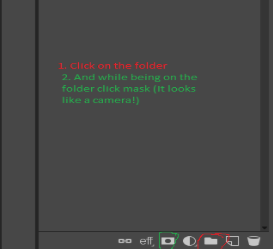
- While the mask is selected, you need to click the folder and while being on the folder click raster mask.
- Now, we need our gif. I’m going to use this one

Click “File” and then “Open”. Choose the gif you want. Now drag the GIF folder to the project or click the right mouse button, choose “duplicate into” and choose the project.
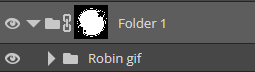
- Final step. Put the gif into the folder
Don’t forget to export it as a gif! (Click “File”, “Export as” and choose the format)
Yay congrats you did it! Here what we got

Pub: 2026-07-28 14:06 UTCEdit: 2026-09-23 07:38 UTCViews: 39